
Apply a Template
Templates also work on French leases entered by hand or brought over from another system. When a lease's dates and exits match a template, its Details tab says This Lease Matches a Lease Template and names the template, so nobody has to tell Leasecake which shape it is.
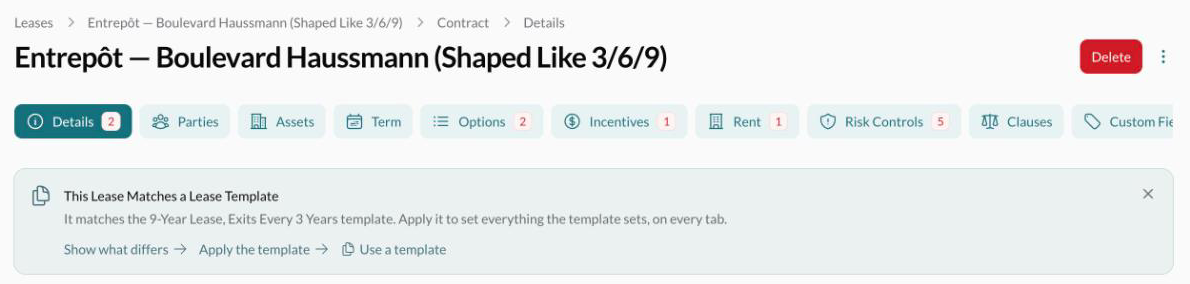
See where a lease differs from its template
Click Show what differs to compare the lease with the template, section by section. Each section is marked Matches, Differs, Not in the Lease or Not in the Template. A section marked Not in the Lease, such as what happens after the term, is a gap that can lead to a missed date. Fix it by hand, or apply the template.
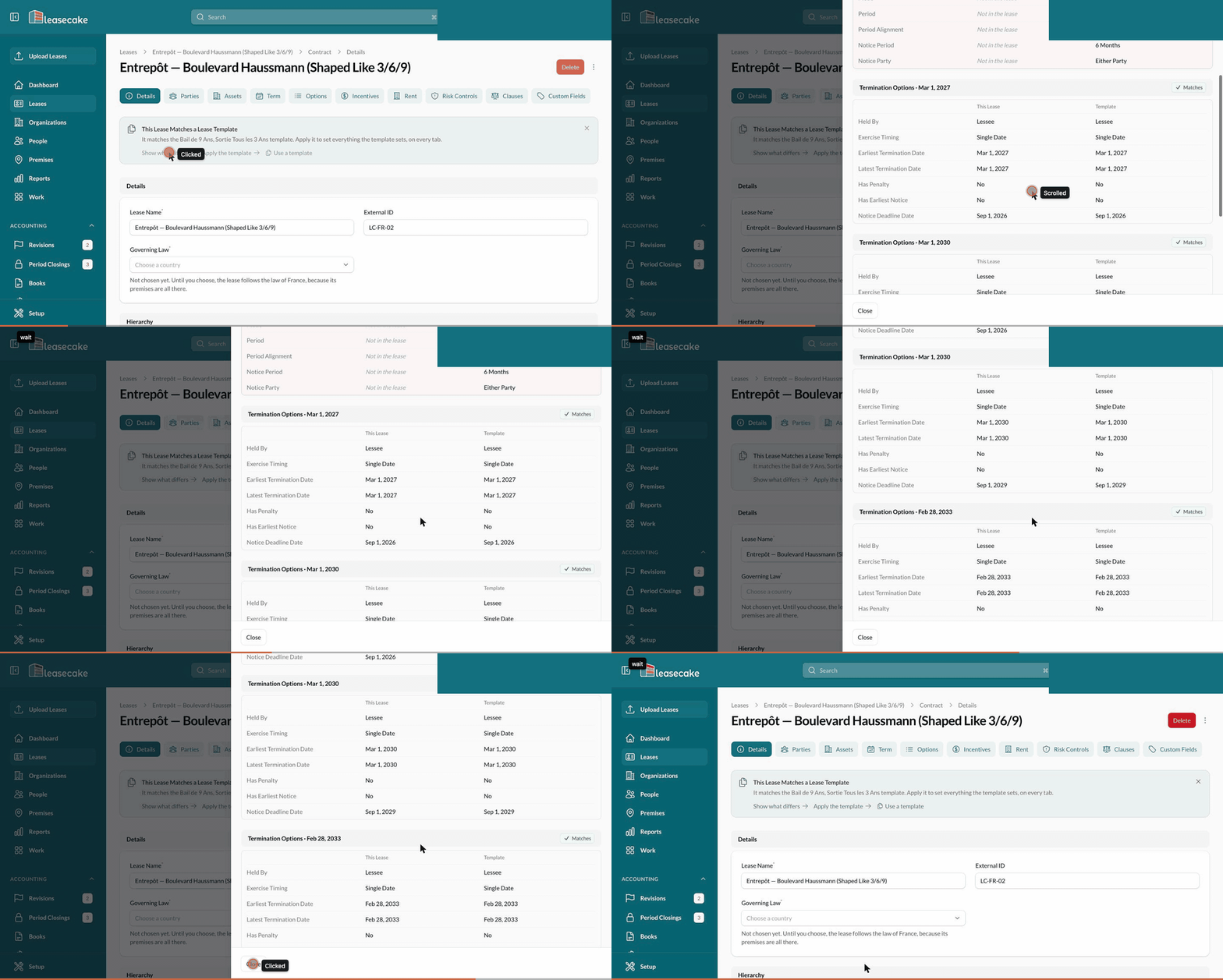
Apply a template
Apply the template sets everything the template covers: the term end, exits, notice deadlines and after-term rules. It also removes any renewal or purchase options.
If the lease is published, start an amendment or a correction.
Save any changes on the tab you're on.
Check Show what differs.
Click Apply the template.
Applying replaces everything the template sets, on every tab. Save your changes on the tab you're on first, and check Show what differs before you apply.
To pick a different shape, click Use a template. Switch on Show all 10 templates to see them all.
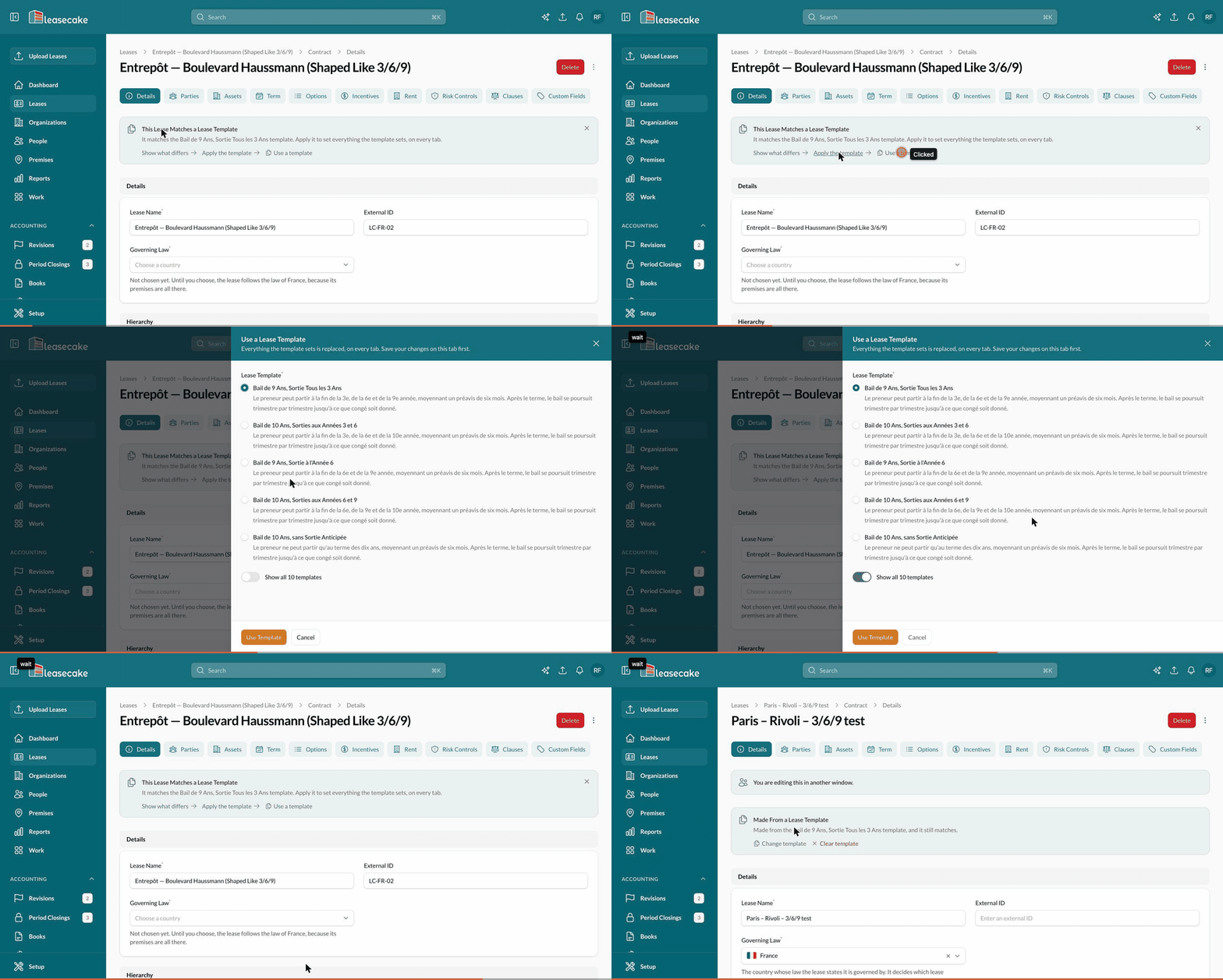
Change, clear or revert a template
Once a lease is made from a template, its banner says so and tells you whether it still matches.
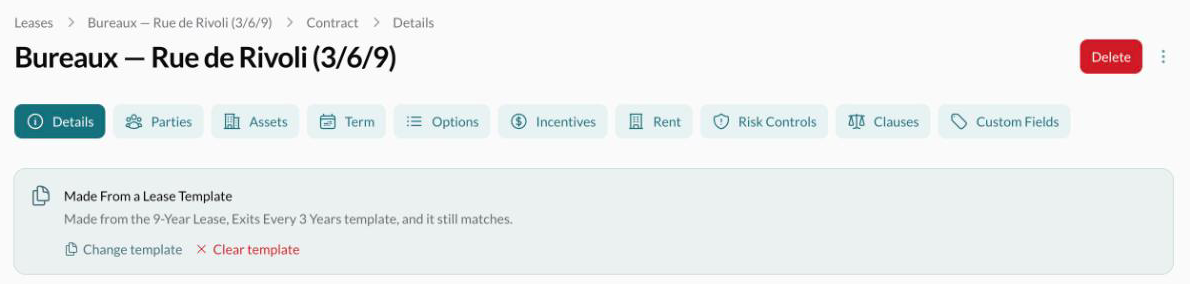
Change template swaps it for another one.
Clear template empties each section the template filled, including sections you've edited since.
Revert to the template appears when someone edits a lease away from its template, and puts the template's values back.