
It's at the top right of the Leases list if your role can create leases. Ask your admin for create access.
Quick Create a Lease
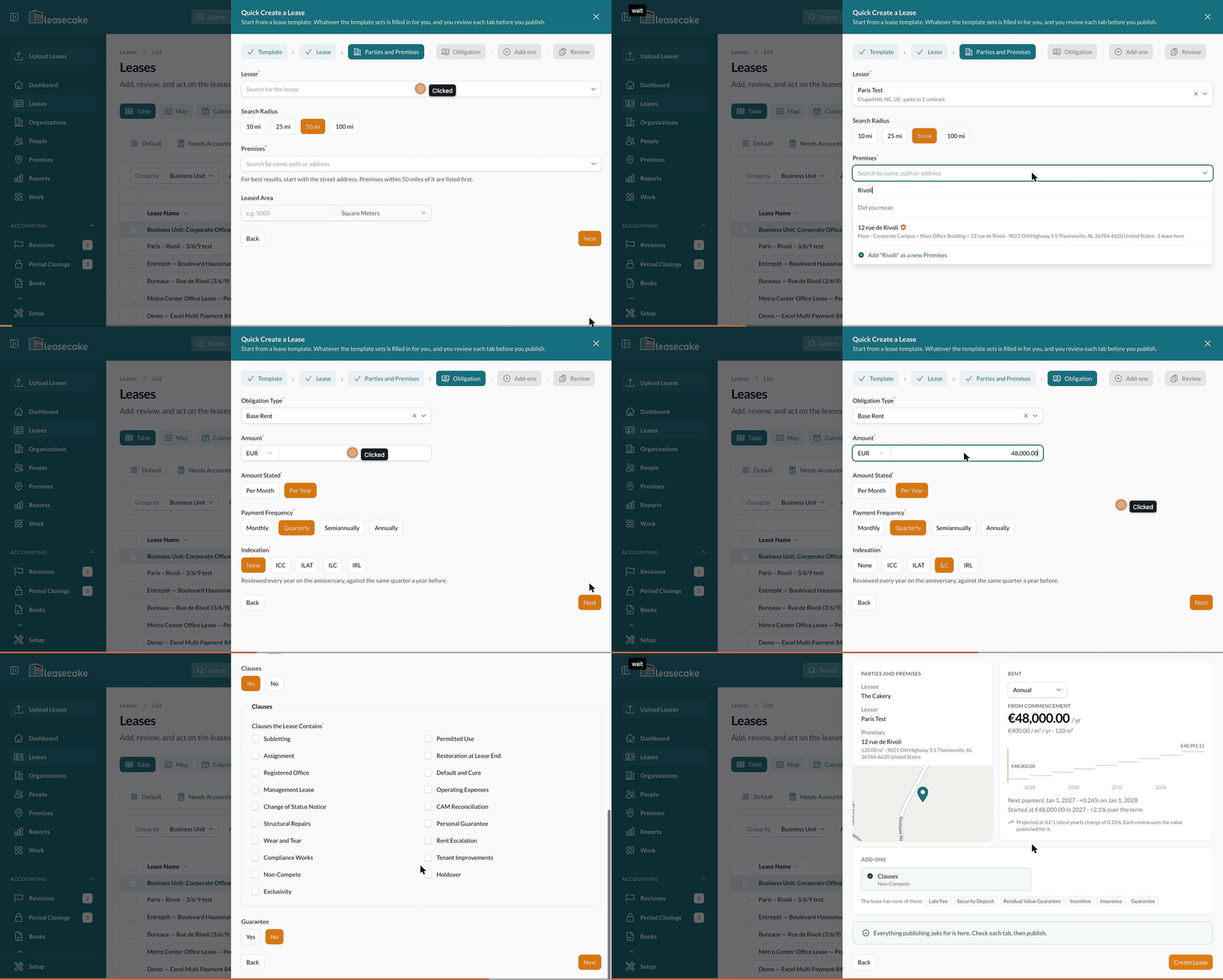
Quick create sets up a French commercial lease in six short steps: pick its template, type a few values, and every exit date and notice deadline is worked out for you. Open it from the Leases list with Quick create (top right). You need a role that can create leases.
Before you start
Have the lease file ready to upload.
Know which template the lease follows. Available Templates lists all ten.
Dates use the yyyy-mm-dd format, for example 2027-01-01.
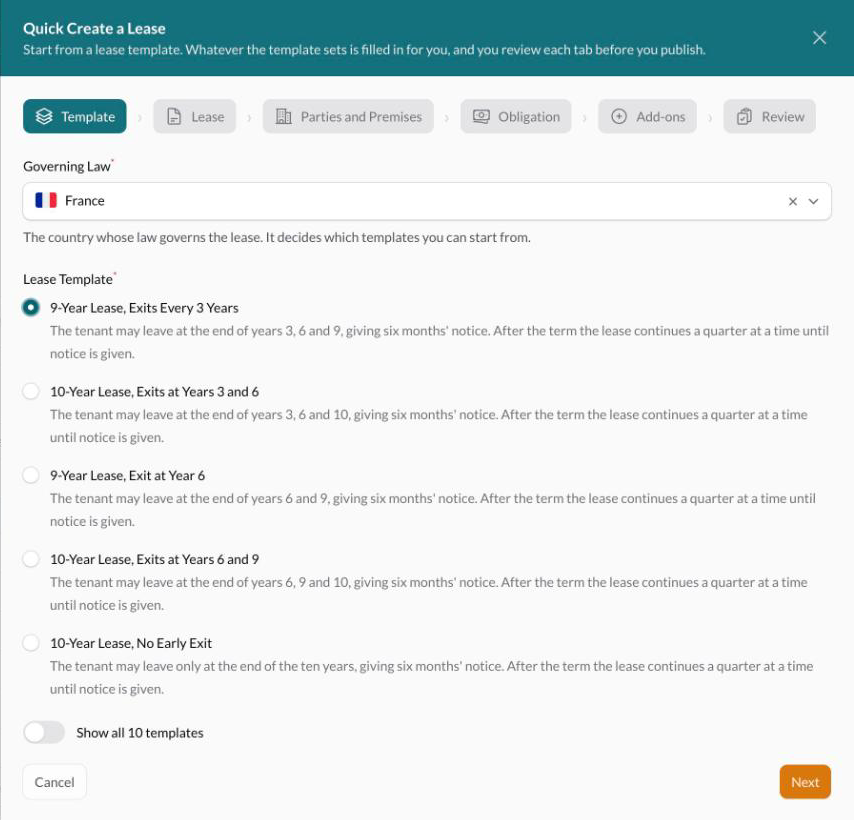
1. Template
Pick the Governing Law (France), then the Lease Template. Each template has a plain description of its exits and what happens after the term. If no templates show, check that Governing Law is France.
2. Lease
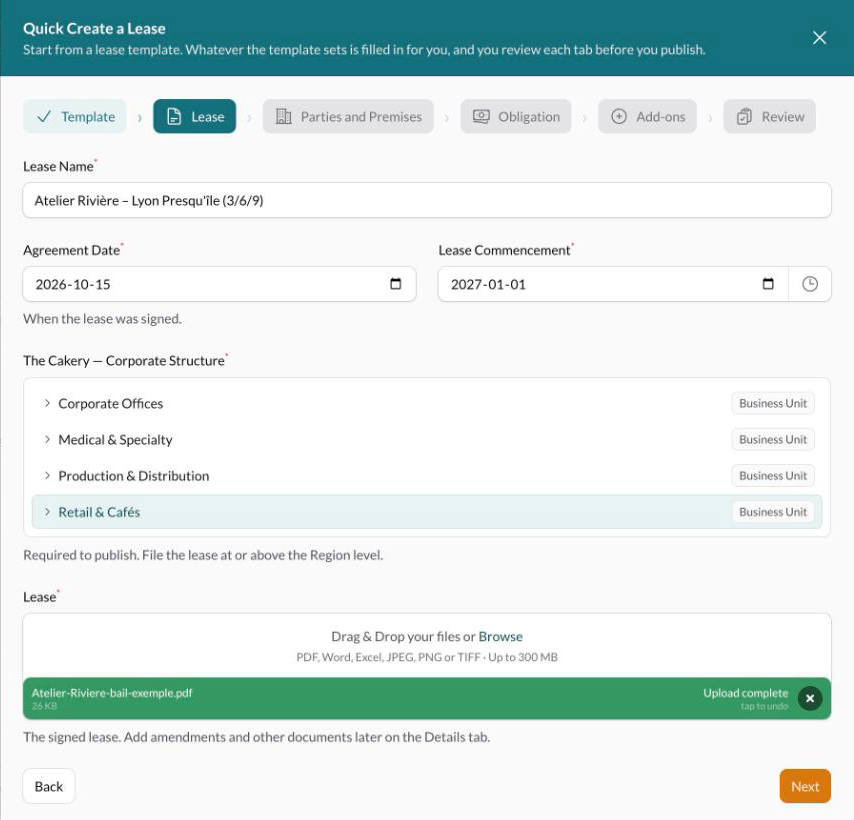
Enter the lease name, the agreement date (when it was signed) and the commencement date. The agreement date can't be in the future.
Upload the lease file.
Choose where the lease sits in your organization structure, at Region level or above.
Upload the lease file first, then choose the structure.
3. Parties and Premises
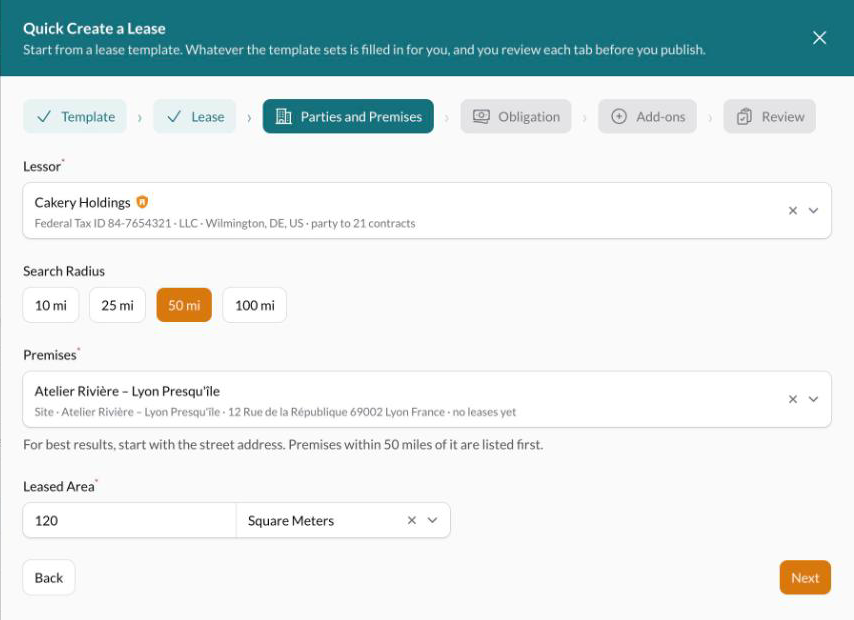
Search for the lessor (the landlord).
For the premises, type the street address. Premises within the search radius are listed nearest first.
Leased Area fills in from the premises, stays required, and can be edited once a premises is picked. Your own company is set as the lessee; change it on the lease's Parties tab afterwards if a different entity holds the lease.
4. Obligation
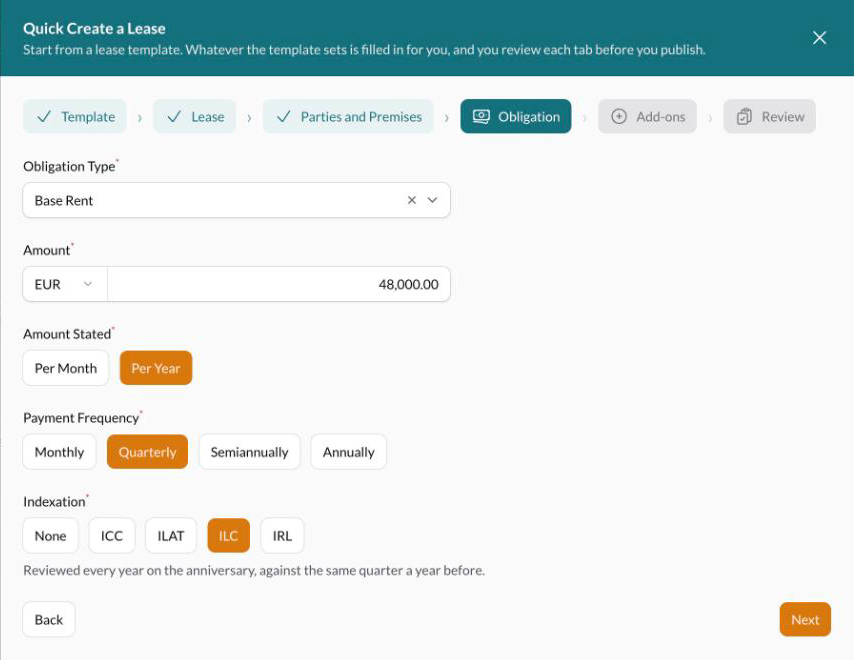
Enter the base rent. For France, it starts in euros, per year, paid quarterly. Pick the index (ICC, ILAT, ILC or IRL) or leave it at None. Indexation is reviewed every year on the anniversary, against the same quarter a year before.
Type amounts with two decimals, for example 48000.00, and check the currency says EUR.
5. Add-ons
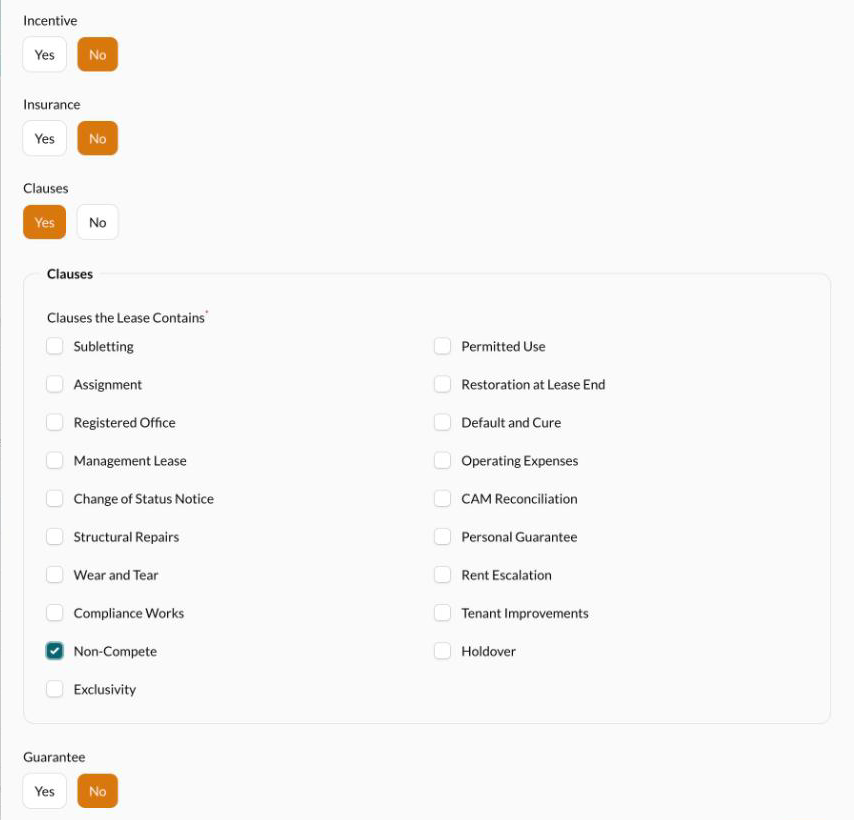
Say yes to anything else the lease has: late fee, security deposit, residual value guarantee, incentive, insurance, clauses and guarantee. For clauses, tick each one the lease contains, such as Non-Compete. You add each clause's details on the lease afterwards.
6. Review
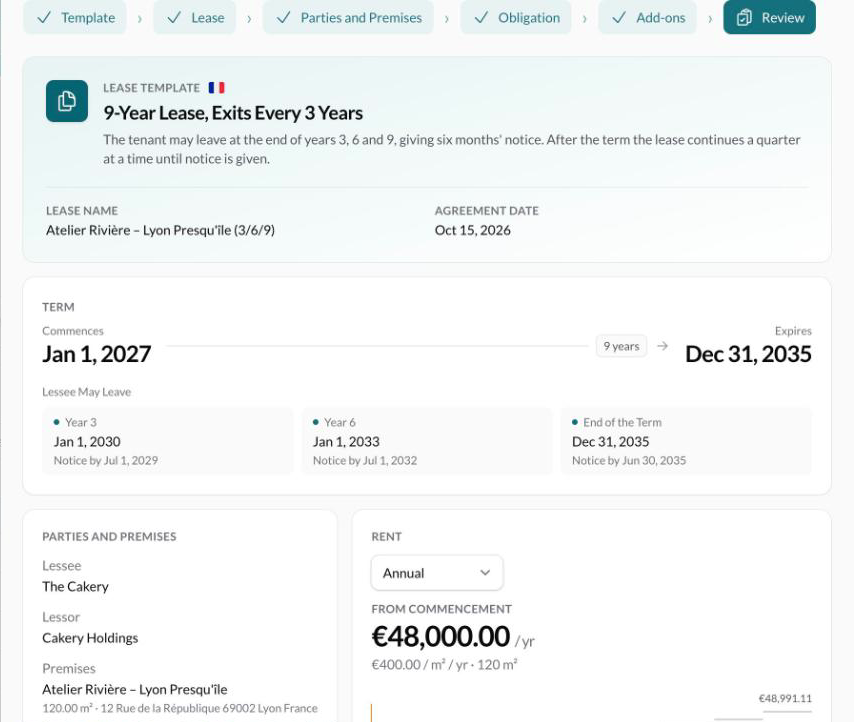
One page shows the template, the term with each exit and its notice deadline, the parties, and the rent projected over the term. Check the dates here, then click Create Lease. The lease opens so you can check each tab and publish it.
Example: a 3/6/9 Starting Jan 1, 2027
For a lease that starts on Jan 1, 2027, the 3/6/9 template sets the end of the term to Dec 31, 2035 and three exits:
Exit | Notice by |
|---|---|
Jan 1, 2030 | Jul 1, 2029 |
Jan 1, 2033 | Jul 1, 2032 |
Dec 31, 2035 | Jun 30, 2035 |
Common questions
I don't see Quick create
Why is our company the lessee?
Quick create assumes you're the tenant. If a different entity holds the lease, change it on the Parties tab.
Was this helpful?
Was this helpful?