
Yes. Place them on that region with a role that has View leases and View premises, plus Manage leases if they edit. Turn on Cascades to Child Nodes if the region has nodes below it.
Limit Access by Region
Place a person or a user group on a node in your organization hierarchy, such as a business unit or region, and they see only the leases and premises filed under that node. You need to be an Owner or Admin, and your workspace needs an active Organization Management hierarchy that your leases or premises are filed in.
How placements decide what someone sees
Once a member has a placement, what they see narrows to their nodes. This applies to Owners and Admins too.
They see the leases and premises filed under their nodes, plus any lease or premises that isn't filed in your organization hierarchy at all.
On the leases a placement reaches, the placement's role decides what they can do, not their main role.
A placement with no role (Visibility only) lets them open those leases and premises and change nothing.
Cascades to Child Nodes is off by default. Turn it on to cover every node below the one you picked.
Through a placement, only lease, lease accounting and premises permissions count, and only on what's filed beneath that node. Posting journal entries and locking periods never come from a placement: they're granted across the whole workspace only.
File every lease before you place people. Leases that aren't filed in your hierarchy stay visible to everyone.
Place a member when you invite them
Placement fields only show if your workspace has a hierarchy.
Go to Setup > Users and click Invite member.
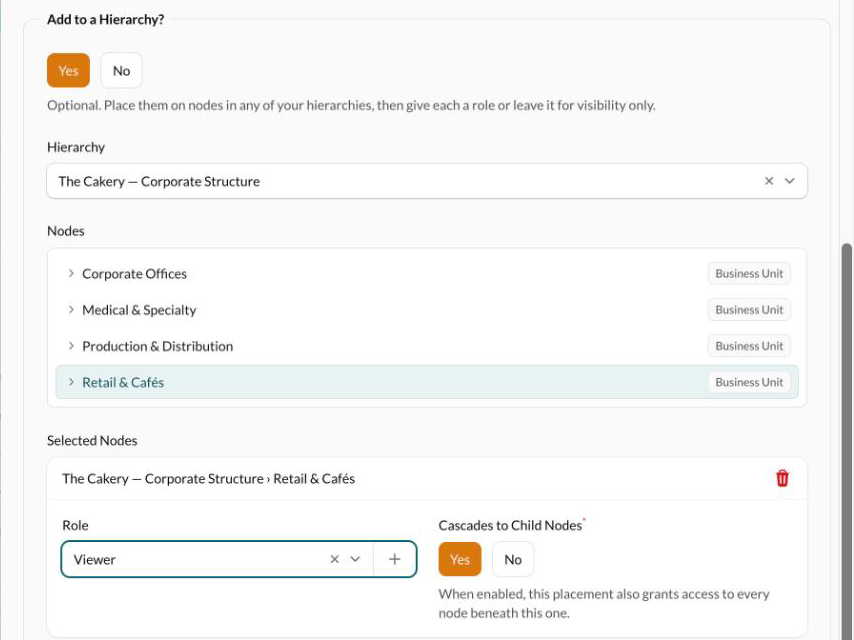
Answer Yes to Add to a Hierarchy?, pick the hierarchy, then click the node.
Choose a Role for the placement, or leave it as Visibility only.
Decide whether it cascades to the nodes below.
If your workspace has user groups, add them to one here too.
Click Send Invitation.
Change an existing member's placements
Go to Setup > Users and click the member's name.
Click Manage access and change their placements.
Click Save Access. The change applies the next time they load a page.
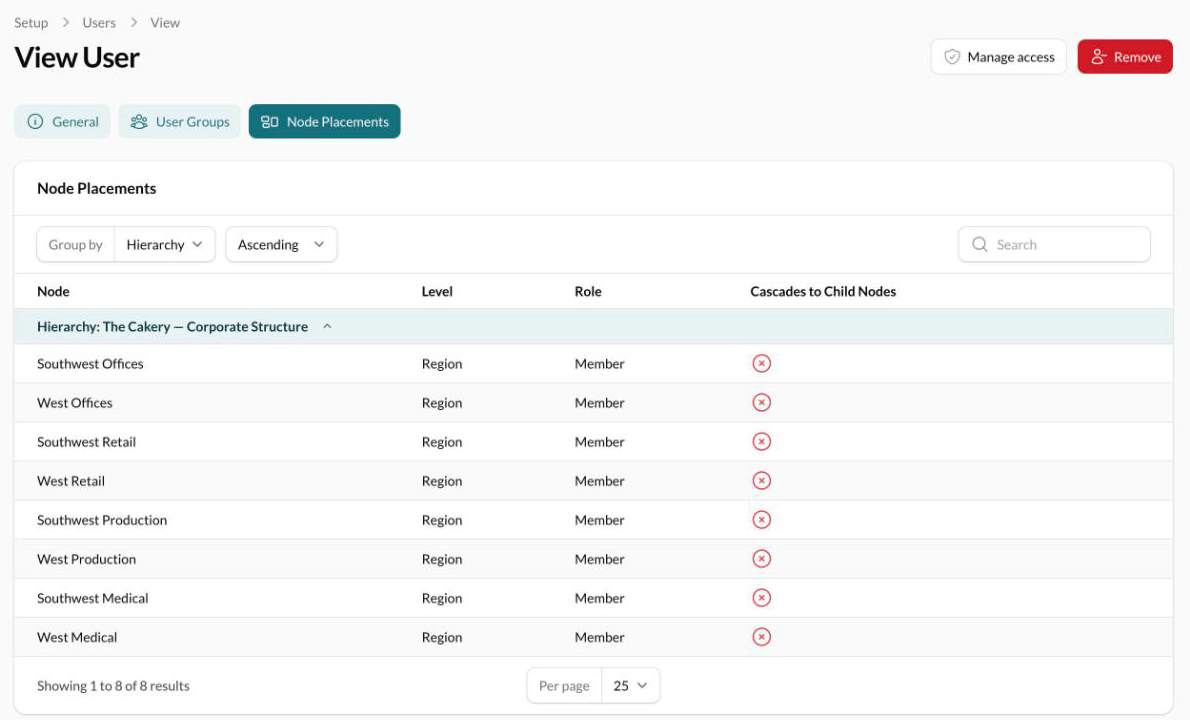
When you give a placement a role, include View as well as Manage. A role with Manage leases but not View leases lets someone change a lease they can't open.
Give a team the same access with a user group
A user group, such as Regional Managers, lets you place a whole team once. Every member gets the group's placements.
Go to Setup > User Groups and click Create group.
Name the group.
Place the group on nodes the same way you place a person.
Open the group and use the Members tab to add members.
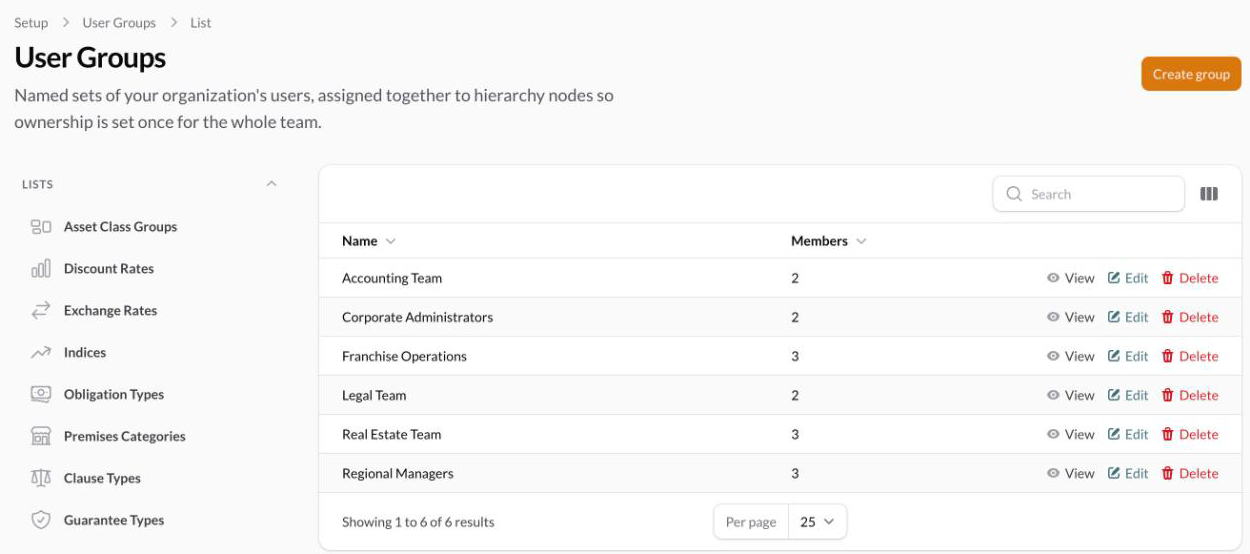
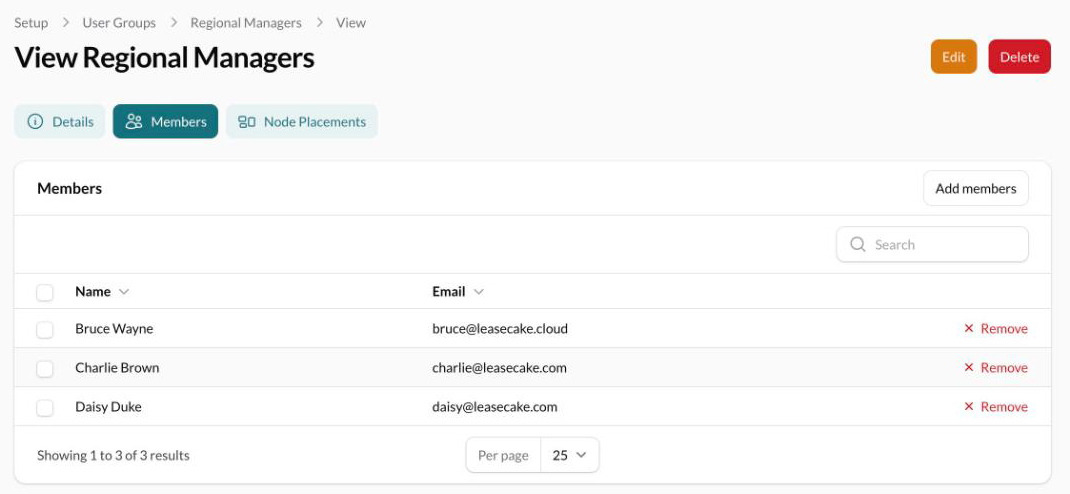
A group counts as a placement. Putting someone in a placed group places them too.
What widens someone's access again
Taking away someone's last placement gives them the whole workspace again. That happens when you remove their only placement, or take them out of their only placed group. Removing someone from a group doesn't touch their account, only the group's placements.
Common questions
Can a regional manager see only their region's leases?
Can a CFO see every region?
Yes. Don't place them or add them to a placed group, and give them a workspace role such as Viewer or Admin.
Can a controller post and lock for one country or reporting entity only?
No. A period close covers every lease under a reporting entity, across all its regions, so posting and locking are granted across the whole workspace. Give them only to the people who close the books for every entity, and use placements to keep everyone else's access to their region.
A placement shows "(not in effect)"
Its hierarchy isn't an active Organization Management hierarchy. Placements only count in an active one.
Was this helpful?
Was this helpful?